Part 4.5: Reaction times, lexical decision task

Good old lexical decision task… It’s where you show participants a word like “THREAD” or a nonword like “DERHTA” and you ask them whether the word you showed them is a real word or not. If you’re not a cognitive psychologist, you may not see how this is a useful exercise.

Studies often find that, when you flash a word like “DOCTOR” for a split second and then show them a semantically related word like “NURSE” right after, people are quicker to decide that “NURSE” is a word (as opposed to a non-word) compared to if you had shown them a semantically unrelated prime like “GASOLINE” ahead of nurse. In this “study”, we’ll show people a “prime” word for 500 milliseconds, then show them a target word that is either semantically related to the prime word, semantically unrelated, or a non-word.

Set up: Import packages, create a window, and a handy showText function

We start the code by importing all the packages we need, creating a window to present everything in, and defining a “showText” function we can use throughout the script so we don’t have to constantly say “blah.draw()” and “window.flip()” all the time.

#   Set up. Importing packages and setting up a window to show stuff in.
from psychopy import visual, event, core
import time
import random
window = visual.Window(monitor="testMonitor", fullscr=True)

# Custom function to show ANY text on screen
def showText(myText): 
    message = visual.TextStim(window, text=myText)
    message.draw()
    window.flip()

Set up the stimuli

Next, we’ll define three lists, one containing semantically related words, another containing semantically unrelated words, and a final list containing non-words. You might recognize some of these stimuli from a previous blog post, and that the non-words as lazy scrambling of the non-related words. I’m not paid hourly. Or at all…

# Setting up the stimuli to be used in the learning and test phase
related_words=["THREAD","HURT","THORN","POINT","KNITTING","THIMBLE","CLOTH","SEWING","HAYSTACK","SHARP","INJECTION","PIN","SYRINGE","EYE","PRICK"]
not_related_words=["FEAR","STEAL","RIPE","SKY","SILL","DELAY","HAND","DESK","SEAT","COLOR","REST","JAZZ","BEARD","FLOUR","SODA"]
non_words=["EARF","TSAEL","ERIP","KSY","LISL","EALDY","NAHD","SEDK","TEAS","ROLOC","ERST","ZAJZ","BERDA","RULOF","DOSA"]

Get the clock out

Next, we’ll define a… let’s call it a function… called “clock”. We’ll use this “clock” to keep track of time. Crazy, right?

# Get the clock out
clock = core.Clock()

You can use “clock” like a stopwatch. You can create a start time with the command “start=clock.getTime()” and a stop time with the command “stop=clock.getTime()”. When you have these “start” and “stop” times recorded, you can simply record a reaction time (RT) as “RT=finish-start”. We’ll do that later though. Just wanted let you know.

Setting up the data

Next, we’ll create a list where the first element is… ANOTHER LIST!

# Setting up the data
data=[["prime","target","decision","rt"]]

Why do this? Well, the first (and right now, the only) element of the list is the header row for our data. Every new element I add will be a new row of actual data. I can just say, “data.append([whatever the prime word was, whatever the target was, which key they clicked, how long it took])” later on… except you’d have to put real inputs because that line I just put in quotes would give your computer a headache.

Instructions

Ideally, you’d have the instructions advance to “the next page”, so to speak, via user input. Like, you’d have the participant press a key to continue. In some of the other posts here, there’s code for how to do that. Here, I just had each “page” of instructions appear for 5 seconds each because I didn’t feel like going look for that code to copy and paste. I certainly wasn’t going to re-write it!

# instructions
showText("In the following study, you'll be shown one word real fast, and then a TARGET word.")
time.sleep(5)
showText("You need to decide whether the TARGET word is a real word or not.")
time.sleep(5)
showText("Press the 1 key if the TARGET word is a real word and the 2 key if it isn't.")
time.sleep(5)

Starting a “for” loop

Next, we’re going to start a “for” loop that will repeat for however many trials we want to have during the study. I picked 10 just for giggles.

for i in range(10):

I chose 10 because it works for this toy example of a study and was more convenient while writing and testing the code. You’d probably want a lot more trials in a real study. As a reminder, when you initiate a “for” loop with a line like this, everything indented under the statement will occur for range(N) times. On each iteration, you can use “i” (or whatever you want to call it, most people say “i”) as a reference for which iteration you’re on. I don’t end up using that feature in this “study”, but if you wanted to record the trial numbers, for example, you could say “trial_number=i” and put “trial_number” or just “i” itself in your new data rows and that’d work.

Draw the prime word randomly from either related_words or non_related_words

First, we’ll use “random.sample()” to basically flip a coin: heads (or “zero”) for the prime word to be drawn from “related_words” and tails (or “one”) for the prime word to be drawn from “not_related_words”. The first argument in “random.sample” specifies the range of possibilities. Since we want 2 (heads or tails), we’ll put “range(2)”. You also have to specify how many “flips” you’re making. We’re doing 1 flip. So, we end up with “random.sample(range(2),1)” to get our coin flip. Since the end result of this command is a list (even though it has only one element this time), you therefore need to specify which element of the list you want to work with. So, we’ll add a [0] at the end, because, in pythonese, zero is the first element in a list.

    # draw the prime word randomly from either related_words or not_related_words
    prime=random.sample(range(2),1)[0]
    if(prime==0):
        prime=related_words[random.sample(range(len(related_words)),1)[0]]
    if(prime==1):
        prime=not_related_words[random.sample(range(len(not_related_words)),1)[0]]

After we’ve drawn a random “0” or “1” and saved that result as “prime” we’ll use some if-then statements to re-assign “prime” as one of the words from either “related_words” or “not_related_words”. The “if” parts should be pretty straightforward by now, but the “then” parts might look crazy at first glance. They’re not THAT crazy though. The outer part is “related_words[ <index>]” or “not_related_words[ <index> ]”, depending on how our coin flip turned out. It’s just saying “prime” is equal to one of the words from one of those lists. Inside the index brackets “[]” we’re drawing a random sample just like before, but the “range()” is the length (or “len()” in pythonese) of those lists. It all might look crazy, but if you break it down, bit by bit, it’s all stuff you’ve seen already.

Draw the target word randomoly from related_words, not_related_words, or non_words

We’re still indented under the “for” loop. All this code is being executed on each iteration through the loop.

    # draw the target word randomly from related_words or not_related_words OR non_words
    target=random.sample(range(3),1)[0]
    if(target==0):
        target=related_words[random.sample(range(len(related_words)),1)[0]]
    if(target==1):
        target=not_related_words[random.sample(range(len(not_related_words)),1)[0]]
    if(target==2):
        target=non_words[random.sample(range(len(non_words)),1)[0]]

The logic here is very similar to when we assigned a prime word, it’s just been expanded to have a third possibility: being a non-word.

Fixation cross and prime word

Now that we’ve assigned a prime word and a target word for the trial we’re on, we’ll show a fixation cross and the prime word for 1 second and half a second, respectively. This is easy to do since we defined a handy function called “showText()” at the beginning of the script.

    # Show fixation cross for 1 second
    showText('+')
    time.sleep(1)
    
    # Show the prime for 0.5 seconds
    showText(prime)
    time.sleep(0.5)

Feel free to adjust these times based on your preferences.

Show target word, collect decision, RT

“showText()” makes our lives so easy. We’ll use it now to show the target word, then we’ll create a “start” time right after we show it. Nothing will happen until the participant clicks “1” or “2”, which will be saved as the first element in a list called “response”. After they’ve clicked a key, we collect a “finish” time and save “RT” as the difference between the start and finish time.

    # Show the target word
    showText(target)
    # start recording reaction time
    start=clock.getTime()
    response=event.waitKeys(keyList=['1','2'])
    # finish recording RT
    finish=clock.getTime()
    RT=finish-start
    data.append([prime,target,response[0],RT])

We cap things off by appending the prime word, target word, zeroth element of “response”, and RT as a new “row” to our “data”, which is a list of lists, the first element of which is the header for the data. This is the last block of code in our “for” loop. Everything between “for i in range(10):” and here will be repeated 10 times, or however many trials you specify.

Export the data and say bye

This last bit should be pretty straightforward, given the previous posts. We export “data” as a CSV file in the same directory the script is being stored in on your computer. After that, the screen says, “Get out of here. We’re done with you.” In so many words. You have to press the “D” key to exit the program for real.

#   EXPORT DATA
import csv
with open(time.strftime('%m-%d-%y')+time.strftime(' %H%M')+' data.csv', 'w') as csvfile:
    writer = csv.writer(csvfile)
    writer.writerows(data)


# Tell the participant to leave
showText("You are now done with the study. Please let the experimenter on duty know.")
resp_key = event.waitKeys(keyList=['d'])

The complete code

And as usual, here’s the completed code in case you wanted to just copy and paste the whole thing into psychopy.

#   Set up. Importing packages and setting up a window to show stuff in.
from psychopy import visual, event, core
import time
import random
window = visual.Window(monitor="testMonitor", fullscr=True)

# Custom function to show ANY text on screen
def showText(myText): 
    message = visual.TextStim(window, text=myText)
    message.draw()
    window.flip()

# Setting up the stimuli to be used in the learning and test phase
related_words=["THREAD","HURT","THORN","POINT","KNITTING","THIMBLE","CLOTH","SEWING","HAYSTACK","SHARP","INJECTION","PIN","SYRINGE","EYE","PRICK"]
not_related_words=["FEAR","STEAL","RIPE","SKY","SILL","DELAY","HAND","DESK","SEAT","COLOR","REST","JAZZ","BEARD","FLOUR","SODA"]
non_words=["EARF","TSAEL","ERIP","KSY","LISL","EALDY","NAHD","SEDK","TEAS","ROLOC","ERST","ZAJZ","BERDA","RULOF","DOSA"]

# Get the clock out
clock = core.Clock()

# Setting up the data
data=[["prime","target","decision","rt"]]

# instructions
showText("In the following study, you'll be shown one word real fast, and then a TARGET word.")
time.sleep(5)
showText("You need to decide whether the TARGET word is a real word or not.")
time.sleep(5)
showText("Press the 1 key if the TARGET word is a real word and the 2 key if it isn't.")
time.sleep(5)


for i in range(10):
    # draw the prime word randomly from either related_words or not_related_words
    prime=random.sample(range(2),1)[0]
    if(prime==0):
        prime=related_words[random.sample(range(len(related_words)),1)[0]]
    if(prime==1):
        prime=not_related_words[random.sample(range(len(not_related_words)),1)[0]]
    
    # draw the target word randomly from related_words or not_related_words OR non_words
    target=random.sample(range(3),1)[0]
    if(target==0):
        target=related_words[random.sample(range(len(related_words)),1)[0]]
    if(target==1):
        target=not_related_words[random.sample(range(len(not_related_words)),1)[0]]
    if(target==2):
        target=non_words[random.sample(range(len(non_words)),1)[0]]
    
    # Show fixation cross for 1 second
    showText('+')
    time.sleep(1)
    
    # Show the prime for 0.5 seconds
    showText(prime)
    time.sleep(0.5)
    
    # Show the target word
    showText(target)
    # start recording reaction time
    start=clock.getTime()
    response=event.waitKeys(keyList=['1','2'])
    # finish recording RT
    finish=clock.getTime()
    RT=finish-start
    data.append([prime,target,response[0],RT])


#   EXPORT DATA
import csv
with open(time.strftime('%m-%d-%y')+time.strftime(' %H%M')+' data.csv', 'w') as csvfile:
    writer = csv.writer(csvfile)
    writer.writerows(data)


# Tell the participant to leave
showText("You are now done with the study. Please let the experimenter on duty know.")
resp_key = event.waitKeys(keyList=['d'])


Some suggestions

One thing you might want to change if you actually implement this is to ensure that the prime word and the target word aren’t the same. You might also take the initial trial type codes (e.g., “0” = a semantically related prime word, “2” = a non-word for the target word), save those under different names, and add them to the data that’s recorded on each trial. That would make it easier to analyze the data later. You wouldn’t have to manually code the data or write a script to code it for you. You’d probably also want to clean up the user experience in some ways. For example, you could add a prompt at the bottom when the test word is being shown, saying something like “Press 1 if it’s a word, Press 2 if it’s a non-word” and then say what their decision was on screen after they’ve pressed one of the keys.
Part 5: Category learning task, “while” loops

In this post, we’ll work on a category learning task. Participants will be shown pictures of beetles with different beak styles, antennae, abdomens, legs, and eyes. In other words, each beetle will have 5 features with 2 different possible values (e.g., eyes can be red or green). To get this study going on your own computer, you’ll need the beetle images linked here:

https://drive.google.com/file/d/1sh9pfqjohWV_L6XnmJz7aOvF5xJGuKq1/view?usp=sharing

Getting started

The following code imports all the packages we’ll be using, creates a window called “window” to display stimuli in, and (at the end) creates a list of paths too the beetle images called “bug_paths”. There are also two functions I added in called “instructions()” and “fixation()”.

#   Set up. Importing packages and setting up a window to show stuff in.
from psychopy import visual, event
import os
import glob
import time
import random
window = visual.Window(monitor="testMonitor", fullscr=True)

# This is a convenient function to call anytime I want to show instructions
def instructions(message):
    contTxt = visual.TextStim(window,text=message)
    contTxt.draw()
    window.flip()
    time.sleep(1.5)
    pressC = visual.TextStim(window,text="Press 'C' to Continue", color='yellow', pos=(0,-0.8))
    pressC.draw()
    contTxt.draw()
    window.flip()
    resp_key = event.waitKeys(keyList=['c'])

# Handy function for showing a fixation cross for 0.5 seconds
def fixation():
    fix_text=visual.TextStim(window,text="+")
    fix_text.draw()
    window.flip()
    time.sleep(0.5)

# Grab bug images
currentDirectory = os.getcwd()
bug_paths = glob.glob(currentDirectory+'/bugfamily/*.jpg')

“instruction()”, as you can probably (hopefully, by now) tell by reading it, will display a message to participants, whatever message you put inside the parentheses. After 1.5 seconds, it will show another message in yellow at the bottom of the screen, saying, “Press ‘C’ to Continue”. The program won’t continue until the participant has pressed the C key. I copy and paste this function into a lot of my studies because it’s easy to just write, e.g., “instruction(“For the next phase, we ask that you blah blah blah”), rather than write out all the code for displaying the text, the message to press ‘C’, etc. every time I want to give the participant instructions.

Another useful addition is “fixation()”. This function shows a fixation cross for half a second. It’s four lines of code that I don’t have to write out every time I want to display a fixation cross. I can instead just say “fixation()” every time I need to since I defined this function.

Instructions

Watch this new “instructions()” code in action.

instructions("In this study, we will show you pictures of beetles. Each one is either from location #1 or location #2. Start by guessing where each beetle came from. We'll give you feedback on whether you're right or wrong.")

See? I just saved myself from writing about 9 lines of code and 9 more every time I want to display some instructions. That’s why writing your own functions is useful.

Set up a beetle “data base”

There are many sophisticated and efficient ways to create objects with attributes that can be called upon, sorted, and manipulated. We’re going to use probably the least sophisticated way because it only uses stuff we already know (“for” loops and lists) and it works.

(Note: the line starting with “bugs.append” is supposed to be indented under the “for” loop but Word Press won’t let me do that for some stupid reason.)

# Set up an empty list to put file paths and bug attributes into
bugs=[]
for i in range(len(bug_paths)):
    props_only=os.path.basename(os.path.normpath(bug_paths[i]))[:-4]    bugs.append([bug_paths[i],props_only[0],props_only[1],props_only[2],props_only[3],props_only[4]])
random.shuffle(bugs) # randomize the order of bugs

The line “bugs=[]” is setting up an empty list to fill up. It’s actually going to be a list of lists (whoa, Inception!). The next line initiates a “for” loop that will iterate through each element within “bug_paths”. The first indented line, starting with “props_only”, is taking just the last part of the path name and removing the “.jpg” from the end. This will leave us with names like “11121” and “21212”. These file names are list of features. Specifically, it is whether the legs, abdomens, antennae, beaks, and eyes are type “1” or “2” in that order.

The line starting with “bugs.append” is taking the current path and saving it as the first item in a new list that’s going to be added to our list-of-lists “bugs”. The next five items in the list are the 1s and 2s of the list. One convenient aspect of character strings in python is that you can use the same indexing you use for lists to refer to different characters in a string. For instance, if I saved “save” as a variable called “myString”, I could type in “myString[0]” and get back “s” or “myString[1]” and get back “a”. (Remember, python starts counting from 0).

So, we’re basically going through each path and creating a list of [<the path to this specific image>, <what kind of legs, type 1 or 2>, <what kind of abdomens>, <antennae>, <beaks>, <eyes>]. We’re taking this list and putting it another list called “bugs”. So, when I refer to “bugs[0]”, it’ll return the first list, which will contain a path to an image of a beetle as well as its features. If you want to refer ONLY to the path of the first beetle picture, you’d type “bugs[0][0]”. Since the zeroth element in “bugs” is a list, you can put another index at the end saying which element in that list you want to look at. So, if you want to know what kind of legs the second bug has in “bugs”, you’d type “bugs[1][1]”.

The last line in the code block randomizes the order of the lists of beetle images and their properties.

Pick a critical feature

We’re going to randomly select a critical features (i.e., beak style, antennae, abdomen, legs, or eyes) that will determine whether each beetle belongs to group 1 or 2. To do this, we’ll use the “random.sample()” function.

#pick a random feature to differentiate 1s from 2s
critical_feature=random.sample(range(5),1)

“random.sample()” needs a range to draw a random number from and the amount of random numbers to draw out of that range. Here, I put “range(5)” because we have features, and a “1” because we only want one critical feature. Note, the output of the “random.sample()” is a list, so if you need to reference the random number it just generated, you need to do it as “critical_feature[0]”.

Running total of correct categorizations

You might want something more nuanced from your own categorization study, but for this one we’ll just be keeping track of how many correct categorizations the participant makes overall.

# set up a running total of correct categorizations
number_correct=0

We’re going to just add 1 to “number_correct” every time the participant makes a correct categorization. You could do this by having a line that says “number_correct=number_correct+1”. It’s easier though to take advantage of a special assignment you can do: “number_correct+=1”, which basically means “this variable is equal to itself plus 1.”

Looping through the list

Setting up a “for” loop to go through each bug path is fairly simple. Just notice that we’re referring to “bugs[i][0]”. “bugs” is a list of lists, so the “i” is going to reference the specific list the loop is currently on and then the “0” further specifies that we want to reference the first element of that list, which is the path to the image.

for i in range(len(bugs)):
    image=visual.ImageStim(window,bugs[i][0])
    image.draw()
    window.flip()

User input

Things are about to get a bit complicated. We want to show people a beetle, then, after they have pressed either “1” or “2” to display “1” or “2” for a moment, then display a message indicating whether they were correct or not. To do this, we’re going to set up a couple of things that won’t make as much sense until a bit later.

    instruction=visual.TextStim(window,pos=(0,-0.4))
    keyboardKeys = ['1','2']
    answer = ''
    question_posed=1

(Note: these lines are all indented under the “for” loop). The first line “instruction = …” is setting up a text stimulus that will appear underneath the beetle pictures. We want it to say “My answer: ___” and fill in the blank after they’ve pressed something. That’s why we haven’t specified a “text=” yet.

“keyboardKeys” are a set of keys we will accept as inputs. “answer” is a blank character string by default. It will be replaced by a “1” or a “2” as soon as the participant clicks either of those keys. The last statement in that code block might be strangest of all: “question_posed=1”. While “question_posed” is equal to 1, we want to display the current beetle picture and wait for an answer. Once they’ve answered, we want to set “question_posed” back to zero. Why, you might ask? Because we’re going to use a “while” loop…

“while” loops

A “while” loop executes all code indented underneath it over and over again until a condition is met. We initiate our “while” loop here with…

    while question_posed==1:

(Note: This line is also under the “for” loop that’s going through all the bug images.) This statement says “while ‘question_posed is equal to 1, I’ll do the code indented underneath over and over again until ‘question_posed doesn’t equal 1.” The idea is to eventually set ‘question_posed’ back to 0 once the participant has answered.

In the meantime… (aka “while”)

While we’re waiting for the participant to answer, we’re going to set “instruction” to read ‘My answer: <insert ‘answer variable, which starts off as a blank string”. We’re going to draw() and flip() this, along with the current beetle picture over and over again. We’re also going to check whether “answer” is equal to a blank string, ”. If it isn’t blank, we want to set “question_posed” back to 0, tell them whether they categorized the beetle correctly or not, and increment the “number_correct” variable if they got it right.

    while question_posed==1:
        instruction.setText('My answer'u': {0}'.format(answer))
        image.draw()
        instruction.draw()
        window.flip()
        
        if(answer != ''):
            question_posed=0
            time.sleep(0.5)
            if(answer==bugs[i][1+critical_feature[0]]):
                number_correct+=1
                image.draw()
                correct_text=visual.TextStim(window,text="Correct!",pos=(0,-0.4),color="green")
                correct_text.draw()
                window.flip()
                time.sleep(1.5)
                fixation()
            if(answer!=bugs[i][1+critical_feature[0]]):
                image.draw()
                incorrect_text=visual.TextStim(window,text="Incorrect!",pos=(0,-0.4),color="red")
                incorrect_text.draw()
                window.flip()
                time.sleep(1.5)
                fixation()
            
            
        for letter in (keyboardKeys):
            if event.getKeys([letter]):
                answer += letter
         

That’s a lot of code… Some of it will already make sense–namely, all the .draw()s and .flip()s. That’s basically what the first four lines under the “while” loop initiation are doing. They’re setting the text of “instruction” to whatever “answer” is set to, which may have changed the lat time the lip iterated. It draws the current answer, the beetle picture, and displays them.

From “if(answer != ”):” and downward for several lines, we have a bunch of stuff that’s going to happen in case the answer does not equal a blank character string, ”. First, it changes “question_posed” to 0 so the “while” loop will stop repeating after the current iteration. Then, it waits for half a second. (Just flows nicer that way, I find).

After this, there are two blocks of code starting with “if( …): ” statements. The top one is for when “answer” is the correct answer. We’re checking the current image with “bugs[i]”. The part that says “[1+critical_feature[0]]” takes some unpacking. Remember that “critical_feature” is a list of one random number drawn between 0-4, which in pythonese is range(5). That’s the feature of the beetle that determines whether it’s category 1 or 2. Remember, too, that the lists in bugs are structures as, “element 0 = path to the bug image, element 1 = the kind of legs the beetle has, etc.”. So, we have to take “critical_feature” plus one to pass up the path and land on the feature that determines which group the current beetle belongs in .

If “answer==bugs[i][1+critical_feature[0]])” evaluates as false, the indented code underneath it won’t execute. The next “if():” statement will execute if they entered the wrong answer–in other words, when “answer != bugs[i][1+critical_feature[0]]”. If you examine the indented code under each “if():” statement, you’ll notice that both give feedback via “TextStim()” for 1.5 seconds, then run the “fixation()” function. The only difference is what the feedback actually is (“correct” vs “incorrect”) and the “correct” block increments “number_correct” via the line “number_correct+=1.

The last block of code at the very bottom, starting with “for letter in (keyboardKeys):” is kind of important. We’ve been talking this whole time as if “answer” might change from a blank character string to a non-blank one. That’s what this block is allowing. It basically searches for whether any of the two elements in “keyboardKeys” have been pressed and, if so, adds them to the character string “answer”, which will be blank at first every time we start over the “for” loop, and it’ll stay that way until the participant presses either the “1” or “2” key.

Stepping back and marveling at this monstrosity

We end up with a “for” loop with a “while” loop inside of it and some hefty if-then statements inside that “while” loop for good measure. You may want to zoom out, scroll around, or whatever, and try and make sure you understand the “big picture” of what this monstrous code is doing. The “for” loop part is going through each stimulus and repeating the same procedures: show them the stimulus, wait for a response, react to the response, etc. The “while” loop starts up once the stimulus is shown, “question_posed=1”. It’s going to keep doing whatever’s indented under the “while” keyword over and over again until “question_posed=0”. This particular “while” loop is re-drawing the stimulus, the “My answer: “, which will update if the participant clicks any of the relevant keys, and shows something different depending on whether they answered correctly or incorrectly. That’s where the if-then statements come in. They’re basically just reacting to whether the participant categorized the beetle correctly or not.

Finishing up

The last couple of lines should be old hat by now.

# print the percent of correct categorizationos
print(number_correct/32)

# Tell the participant to leave
bye_text=visual.TextStim(window,text="You are now done with the study. Please let the experimenter on dury know.")
bye_text.draw()
window.flip()
resp_key = event.waitKeys(keyList=['d'])

The first line prints the “number_correct” divided by 32, the number of beetle pictures. In other words, it prints the proportion of correct categorizations. The last 5 lines under “#tell the participant to leave” tells the participant to leave, but in a nice way. It’s more or less the same lines I’ve closed a few of the experiments with so far, so it should look pretty self-explanatory by now.

Below is the entire script with comments.

#   Set up. Importing packages and setting up a window to show stuff in.
from psychopy import visual, event
import os
import glob
import time
import random
window = visual.Window(monitor="testMonitor", fullscr=True)

# This is a convenient function to call anytime I want to show instructions
def instructions(message):
    contTxt = visual.TextStim(window,text=message)
    contTxt.draw()
    window.flip()
    time.sleep(1.5)
    pressC = visual.TextStim(window,text="Press 'C' to Continue", color='yellow', pos=(0,-0.8))
    pressC.draw()
    contTxt.draw()
    window.flip()
    resp_key = event.waitKeys(keyList=['c'])

# Handy function for showing a fixation cross for 0.5 seconds
def fixation():
    fix_text=visual.TextStim(window,text="+")
    fix_text.draw()
    window.flip()
    time.sleep(0.5)

# Grab bug images
currentDirectory = os.getcwd()
bug_paths = glob.glob(currentDirectory+'/bugfamily/*.jpg')

instructions("In this study, we will show you pictures of beetles. Each one is either from location #1 or location #2. Start by guessing where each beetle came from. We'll give you feedback on whether you're right or wrong.")

# Set up an empty list to put file paths and bug attributes into
bugs=[]
for i in range(len(bug_paths)):
    props_only=os.path.basename(os.path.normpath(bug_paths[i]))[:-4]
    bugs.append([bug_paths[i],props_only[0],props_only[1],props_only[2],props_only[3],props_only[4]])
random.shuffle(bugs) # randomize the order of bugs

#pick a random feature to differentiate 1s from 2s
critical_feature=random.sample(range(5),1)

# set up a running total of correct categorizations
number_correct=0

# loop through the list of bugs
# commenting every major line here would be aggravating, just go read 
# this part of the blog again    : P
for i in range(len(bugs)):
    image=visual.ImageStim(window,bugs[i][0])
    image.draw()
    window.flip()
    instruction=visual.TextStim(window,pos=(0,-0.4))
    keyboardKeys = ['1','2']
    answer = ''
    question_posed=1
    while question_posed==1:
        instruction.setText('My answer'u': {0}'.format(answer))
        image.draw()
        instruction.draw()
        window.flip()
        
        if(answer != ''):
            question_posed=0
            time.sleep(0.5)
            if(answer==bugs[i][1+critical_feature[0]]):
                number_correct+=1
                image.draw()
                correct_text=visual.TextStim(window,text="Correct!",pos=(0,-0.4),color="green")
                correct_text.draw()
                window.flip()
                time.sleep(1.5)
                fixation()
            if(answer!=bugs[i][1+critical_feature[0]]):
                image.draw()
                incorrect_text=visual.TextStim(window,text="Incorrect!",pos=(0,-0.4),color="red")
                incorrect_text.draw()
                window.flip()
                time.sleep(1.5)
                fixation()
            
            
        for letter in (keyboardKeys):
            if event.getKeys([letter]):
                answer += letter
         

# print the percent of correct categorizationos
print(number_correct/32)

# Tell the participant to leave
bye_text=visual.TextStim(window,text="You are now done with the study. Please let the experimenter on dury know.")
bye_text.draw()
window.flip()
resp_key = event.waitKeys(keyList=['d'])

Part 4: Displaying images, manually assigning groups, export .CSV files, if-then statements

In this post, we’ll go over how to create an experiment where people are randomly assigned to one of two groups and, more importantly, how to export their data as a CSV (comma separated values) file. CSV files are essentially spreadsheets that can be read by Excel, Google Sheets, R, SPSS, or whatever you use to examine data.

What you’ll end up with

We will randomly assign the participant to either a control group or an experimental group. The experimental group will be shown some messages describing the difference between expressionist and impressionist paintings. The control group won’t. Both groups will eventually start the learning phase, where they will be shown a few labelled examples of expressionist and impressionist paintings. The control group will only have these examples to learn the difference. The experimental group will have read a description of how they differ to supplement the examples. For the test phase, both groups will be shown new paintings without labels. They will be asked to categorize each painting as “expressionist” or “impressionist”.

(Not that you asked, but if we were to run this study for real, with a lot more stimuli and varying levels of instructions, I think you’d have a very hard time improving people’s ability to be able to distinguish random, unfamiliar examples of “expressionist” and “impressionist” paintings.)

Preparing image files

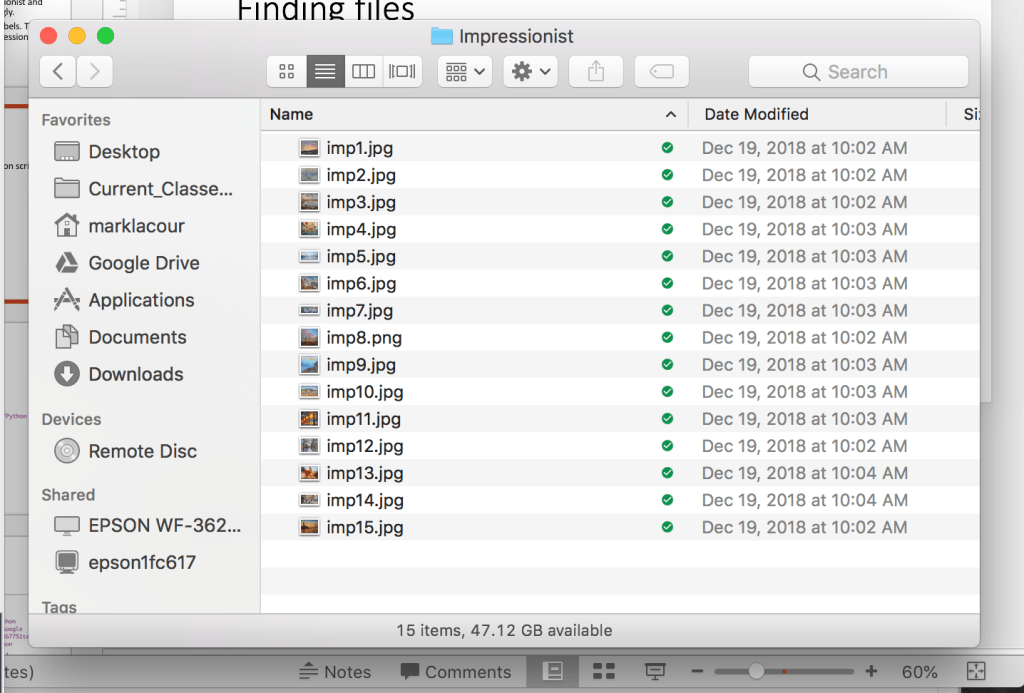
To get your psychopy script to access files on your computer, it’s easiest to put folders of stimuli you plan on using in the same folder the “.py” script is saved in. I created folders called “Expressionist”, “Impressionist”, and “Test”. I did a Google Image search and filled these folders with equal amounts of .JPG files for the different painting styles, as pictured below.

Giving them uniform names is good practice, but not necessary in this case. The “test” folder was the same, but with 7 each of “exp” and “imp” examples.

Dealing with paths

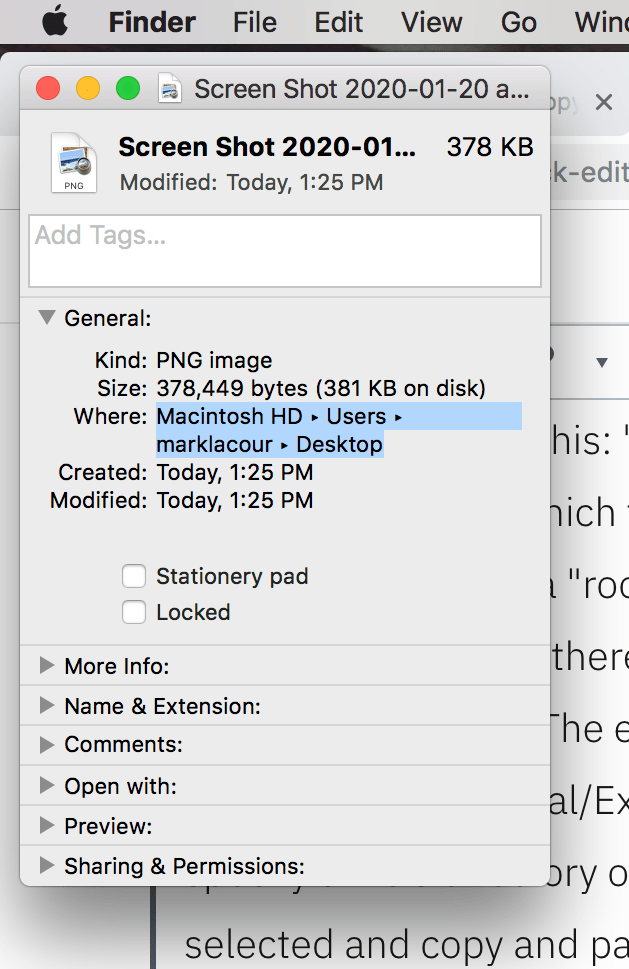
Every file on your computer has a “path” leading to it. On a machine running OS X, it’ll look something like this: ‘/Users/marklacour/Desktop/RA stuff/Python tutorial’. It basically specifies which folders to go through to get to the file(s) you need. Typically, the path starts with a “root directory” and specifies which folders/directories you’d have to double-click from there (separated by forward slashes “/” on OS X machines but back slashes “\” on PCs). The end of the path should end with the file you are trying to use, e.g., ‘…/Python tutorial/Expressionist/Exp1.jpg’. If you’re ever looking for a shortcut to specify a file’s directory on an OS X computer, you click “command + i” while the file is selected and copy and paste the path that appears in the pop up like in the picture below.

After you paste the path, you only need to finish it with the file’s actual name, extension included, e.g., “.py”, “.jpg”. If you use a PC then I’m sure there’s some equally easy way to do that you can Google for yourself. : P

Make a list of image directories

We’re going to work smart instead of hard. We’ll start by importing a library called “os” and then creating a variable storing the path to the folder your “.py” script is being stored in automatically.

import os
currentDirectory = os.getcwd()

The function “os.getcwd()” basically says “get current working directory”. The variable “currentDirectory” will be the path to the folder your script is in.

Now we want to create a list of paths to all the images we’ll be using. A simple way to use this is to use the “glob” library like so.

import glob
Expressionist = glob.glob(currentDirectory+'/Expressionist/*.jpg')

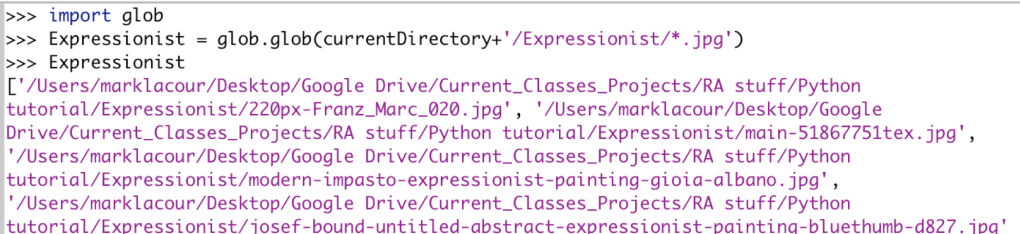
The “glob.glob()” function is allowing us to specify a path to a folder/directory and create a list of file paths for all the files in that directory. Here, we specify with “*.jpg” at the end that we want any file ending in a “.jpg” to be part of the list. If you typed “print(Expressionist) at the end of the script and ran it, you’d get something like what’s in the picture below.

(Note: The image below is a screenshot from the “shell”. If you look at the bottom window, the “Output” of your script is the default tab open, but there’s also a “Shell” tab. When you’re script runs, it creates variables, values assigned to those variables, imports packages, etc. temporarily, and outputs whatever you tell it to into the “Output” tab. If you just want to play around with some code, you can go to the “Shell” tab and do so there. Any variables you define or packages imported will stay that way until you exit Psychopy.)

Each element in the list “Expressionist” is a path to a file ending in “.jpg” within the “Expressionist” folder I created for the study.

Beginning at the beginning

The beginning of the script will look like this:

#   Set up. Importing packages and setting up a window to show stuff in.
from psychopy import visual, event
import time
import os
import random
import glob
import csv
window = visual.Window(monitor="testMonitor", fullscr=True)

#   Get all the picture directories
currentDirectory = os.getcwd()
Expressionist = glob.glob(currentDirectory+'/Expressionist/*.jpg')
Impressionist = glob.glob(currentDirectory+'/Impressionist/*.jpg')
Test = glob.glob(currentDirectory+'/Test/*.jpg')

All the “import” lines are getting scripts ready that we’ll be using later. The “window = ” line is setting up a window to display stuff in, as you should know by now. Finally, everything under the comment “Get all the picture directories” is setting up lists of file paths to all the images organized into collections called “Expressionist”, “Impressionist”, and “Test”.

Manually assign the participant to a condition

For now, we’ll assign participants to the experimental “condition 1” or the control group “condition 2” manually:

#Manually assign a condition
condition=0
condition_assignment = visual.TextStim(window, text='Press 1 for condition 1 \nPress 2 for condition 2')
condition_assignment.draw()
window.flip()
condition_key=event.waitKeys(keyList=['1','2'])
condition=int(condition_key[0])

First, we’re saying “condition = 0”. We’ll want to put it as either “1” or “2” later. We’ll keep it as “0” as a default. When you start specifying what you want the program to do depending on whether they’re in condition “1” or “2”, you’ll start getting error messages if they’re still in “condition 0”. You’ll know that the assignment isn’t working right.

“condition_assignment” is telling the researcher on duty to press the “1” or “2” key to assign the participant to the respective conditions. The next two lines draw and then display this message. “condition_key” is waiting to receive a “1” or “2” input before going on. If you want to add more conditions to your experiment, simply extend the “keyList” to equal [‘1’, ‘2’, ‘3’], [‘1’, ‘2’, ‘3’, ‘4’], or whatever.

The last variable takes this input and converts it to an integer. The variable “condition_key” is stored as a list and the actual key that was pressed is stored as the first (in python-ese, the zeroth) value in that list. That’s why we have “condition_key[0]” in there. I put “int()” around that because the value assigned to “condition_key[0]” is technically a character string, “1”, rather than an integer, 1. Believe it or not, the difference between “1” and 1 is all or nothing in the eyes of python and about 50% of routine problems you will eventually run into while coding is making sure the data you’re handling are all technically in compatible formats.

Show instructions to people in “condition 1”

The following code will show participants assigned to “condition 1” definitions trying to distinguish “expressionist” and “impressionist” paintings with words.

# Show definitions if they're in the experimental condition
if(condition==1):
    explanation1 = visual.TextStim(window, text='Expressionist Paintings typically present the world solely from a subjective perspective, distorting it radically for emotional effect in order to evoke moods or ideas. Expressionist artists sought to express the meaning of emotional experience rather than physical reality.')
    explanation1.draw()
    window.flip()
    time.sleep(5)
    
    press_C = visual.TextStim(window, text="Press the C key when you are ready", pos=(0,-0.8))
    explanation1.draw()
    press_C.draw()
    window.flip()
    instructions_done=event.waitKeys(keyList=['c'])
    
    explanation2 = visual.TextStim(window, text='Impressionist paintings, on the other hand, typically have small, thin, yet visible brush strokes, open composition, emphasis on accurate depiction of light in its changing qualities (often accenturating the effects of the passage of time), ordinary subject matter, inclusion of movement as a crucial element of human perception and experience, and unusual visual angles.')
    explanation2.draw()
    window.flip()
    time.sleep(5)
    
    press_C = visual.TextStim(window, text="Press the C key when you are ready", pos=(0,-0.8))
    explanation2.draw()
    press_C.draw()
    window.flip()
    instructions_done=event.waitKeys(keyList=['c'])

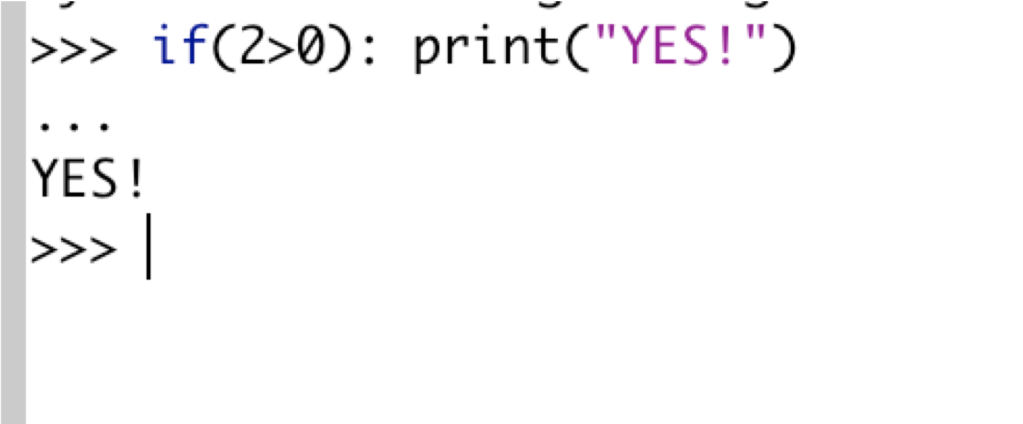
The most important thing here is the “if(condition==1):” and all lines beneath it being indented. This “if-then” logic is very useful. When you put a logical statement that will evaluate as “True” or “False” in the parentheses, like “if(2>0)” python will execute anything that comes after the colon when those conditions evaluate as “True”.

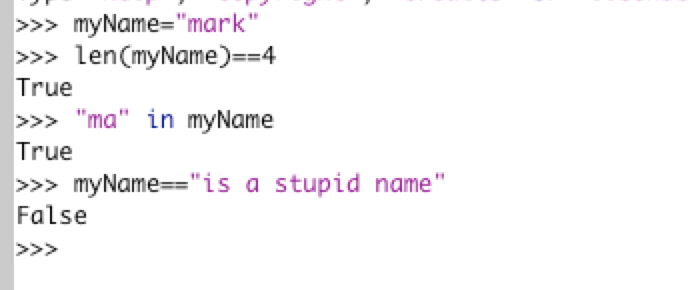
In the code we’re using, we’re testing the statement “(condition==1)”. “condition” will be assigned a value of 1 or 2 (no quotation marks!). If “condition” was set to a character string like “1”, then you’ll get an error message because no character strings are equal to an integer. You can evaluate, e.g., “(“I like cheese” == “I like cheese”), though in case you’re really bored. In other words, you can test whether character strings are equal to each other or whether certain combinations of characters are in another string, but you cannot test them against integers unless you’re testing the length of the character string or something like that… (see picture below).

Please don’t test “myName==’is a good name'” because python will claim this is also false.

…anyway, if you pressed “1” when the program asked you to assign the participant to a condition, then this script should have successfully converted it into a 1 (note the lack of quotation marks!), and make “(condition==1)” a True statement. Since the statement is true, python will execute all the indented lines after the colon, “:”. If the statement’s false, like when you assign people to “condition 2”, then python will skip all the indented lines.

All the definitions and whatnot are simply displaying text stimuli, waiting, telling you too press the “C” key when you’re ready to continue beneath the main text after some time. It should all be understandable by now.

Instructions for the study phase

This next bit should be very boiler plate for you by now too.

#Instructions for study phase
intro1 = visual.TextStim(window, text='For the first phase of this study, we will show you several paintings. Each will be labelled as belonging to "1 = Expressionist" or "2 = Impressionist". You will be asked to look at new paintings afterward and decide which of the two categories each one belongs to')
intro1.draw()
window.flip()
time.sleep(5)

press_C = visual.TextStim(window, text="Press the C key when you are ready", pos=(0,-0.8))
intro1.draw()
press_C.draw()
window.flip()
instructions_done=event.waitKeys(keyList=['c'])

These are the instructions that everyone will see, regardless of what condition they were assigned to.

Learning phase

Now for the more interesting stuff: Showing people the labelled pictures for them to try and learn the difference between “expressionist” and “impressionist” paintings.

#Show the stimuli
Training_stimuli=Expressionist+Impressionist
random.shuffle(Training_stimuli)
for i in range(len(Training_stimuli)):
    image = visual.ImageStim(window,Training_stimuli[i])
    image.draw()
    
    label=""
    if("exp" in Training_stimuli[i]):
        label="1 = Expressionist"
    elif("imp" in Training_stimuli[i]):
        label="2 = Impressionist"
    
    label_stimuli=visual.TextStim(window, text=label, pos=(0,-0.8))
    label_stimuli.draw()
    
    window.flip()
    time.sleep(1)

The first line after the comment are adding the list of file paths called “Expressionist” and “Impressionist” together so we end up with all the training stimuli in one list called “Training_stimuli”.

The second line randomizes the order of the stimuli.

“for i in range(len(Training_stimuli)):” is initiating a “for” loop, basically saying, for every number, i, corresponding to the length of “Training_stimuli”, do the following. It’ll basically start i at 0, do everything indented under the “for” loop on the zeroth part of any list that’s indexed with i. In other words, “myList[i]” would be read as “myList[0]” the first time through the “for” loop, then as “myList[1]” the second time, until you reach the end of the range of numbers you wanted to loop through.

The first two indented lines under the “for” loop are creating an image stimulus called “image”. The “ImageStim” function works a lot like “TextStim”. The first argument specifies a window to display the stimulus. The second argument, instead of specifying what the text is, specifies a path to the image you want to display. After that, you “.draw()” and “window.flip()” as you would for a text stimulus, hence the “image.draw()” line right underneath.

The lines starting with ” label=”” ” are labeling each image as “expressionist” or “impressionist”. First, we say that label equals an empty text string, “”, because we don’t want to assign it anything meaningful that will get through our if-then statements later by default. If the if-then statements are working right, we want it to show. Next, we’re say, in plain English, “If the character string ‘exp’ appears anywhere in the current file path, then change label from “” to “1 = Expressionist”. The next line is doing the same thing, except it’s checking whether “imp” is in the path the “for” loop is on at the moment and labelling it appropriately.

The line beginning with “label_stimuli” is creating a text stimulus out of the “label” we just created. The rest is pretty standard by now. We’re saying to draw “label_stimuli”, show it, then wait a second. If you were to actually run this study, you’d want to give participants a lot longer than a single second to look at the label and try to figure out how the current image fits a pattern or a definition.

(Note: You’ll probably want to change “time.sleep(1)” to last more than one second. The participant probably won’t be able to soak up much information in that time, but it’s a good time to have stimuli appear while you’re in the process of writing the basic script and making sure everything generally does what it’s supposed to. Feel free to put your own special number in those parentheses. I won’t be offended.)

Instructions for the test phase

As with the instructions for the learning phase, this should all be pretty standard by now.

#Instructions for test phase
test_intro = visual.TextStim(window, text='We will now show you some new images. Each one is of an expressionist or impressionist painting. Press the "1" key if you think it is an expressionist painting. Press the "2" key if you think it is an impressioinist painting.')
test_intro.draw()
window.flip()
time.sleep(5)
press_C = visual.TextStim(window, text="Press the C key when you are ready", pos=(0,-0.8))
test_intro.draw()
press_C.draw()
window.flip()
instructions_done=event.waitKeys(keyList=['c'])

Test phase (starting to track data to import later)

Finally! Some new stuff! During the test phase, we’re going to keep track of (1) which image was shown on each trial and (2) whether the participant labelled that image as “1” for “expressionist” or “2” for “impressionist. The way we’re going to do this may seem odd, but I find it’s the simplest one to understand as a beginner and is very easy to implement. First, we’re going to store a list of column headers INSIDE A LIST!

#Test phase
participant_data=[["Shown", "Response"]]

The list “[“shown”, “response”]” is being entered as the first, and only, element in a list called “participant_data”. “shown” and “response” are going to end up being the column labels for our data. To add a new row, we’re going to use the command “participant_data.append([<image shown>, <participant response>]). So, we’ll be adding a 2-item list to “participant_data”. You’ll see this in action a few lines down.

First, though, we’ll randomize the order of the test stimuli:

random.shuffle(Test)

Next, we’ll create a text stimulus called “label” that will appear at the bottom of each image reminding participants that “1” is for “expressionist” and “2” is for “impressionist”. We’re too nice.

label=visual.TextStim(window,text="1 = Expressionist,  2 = Impressionist", pos=(0,-0.8))

The next lines will loop through each item in “Test”, show each image, wait for a response, etc.

for i in range(len(Test)):
    image = visual.ImageStim(window,Test[i])
    image.draw()
    label.draw()
    window.flip()
    response=event.waitKeys(keyList=['1','2'])
    participant_data.append(Test[i], response[0]])

The last indented line adds a new list to our list-of-lists, the participant’s data. The only problem is that “Test” is a list of paths. These paths are sometimes pretty long and it’d be nice if it only referenced the last element in the path, the image name itself. To fix this, use this line instead:

    participant_data.append([os.path.basename(os.path.normpath(Test[i])), response[0]])

Export the data

At the end of the study, you’ll want to export their data BEFORE you say “bye” to the participant. If the process by which you export data is even slightly complicated, you don’t want it to start AFTER the program says “bye” to the participant. There’d always be the chance that the program ends up being shut off before the data is done exporting.

#   EXPORT DATA
with open(time.strftime('%m-%d-%y')+time.strftime(' %H%M')+' data.csv', 'w') as csvfile:
    writer = csv.writer(csvfile)
    writer.writerows(participant_data)

The first line usually has a form more like “with open(<name of my new file>, ‘w’)” in the beginning. I put some code in, however, that will name the file as the date and time the study was completed in month-day-year and military time format + “data.csv” at the end. You’ll get names like “01-20-20 1416 data.csv”. If, for whatever reason, you want to reformat the way the files are named, have fun. : P

The second argument, where we put ‘w’, specifies whether you’re writing the file, reading it, etc. The “as csvfile:” bit at the end is telling python that you want to refer to this new file you’re creating on the next indented lines as “csvfile” for convenience.

The next two lines are basically just saying, “for each list in ‘participant_data’, write it as a row in ‘csvfile’.

End of the study

WE close things out with some typical “thanks for stopping by, let the experimenter on duty” message and wait for someone to press the “D” key before actually closing the program. Rather than give it it’s own block, I put it at the end of the “final code” for this post, which has been commented

#   Set up. Importing packages and setting up a window to show stuff in.
from psychopy import visual, event
import time
import os
import random
import glob
import csv
window = visual.Window(monitor="testMonitor", fullscr=True)

#   Get all the picture directories
currentDirectory = os.getcwd()
Expressionist = glob.glob(currentDirectory+'/Expressionist/*.jpg')
Impressionist = glob.glob(currentDirectory+'/Impressionist/*.jpg')
Test = glob.glob(currentDirectory+'/Test/*.jpg')

#Manually assign a condition
condition=0
condition_assignment = visual.TextStim(window, text='Press 1 for condition 1 \nPress 2 for condition 2')
condition_assignment.draw()
window.flip()
condition_key=event.waitKeys(keyList=['1','2'])
condition=int(condition_key[0])

# Show definitions if they're in the experimental condition
if(condition==1):
    explanation1 = visual.TextStim(window, text='Expressionist Paintings typically present the world solely from a subjective perspective, distorting it radically for emotional effect in order to evoke moods or ideas. Expressionist artists sought to express the meaning of emotional experience rather than physical reality.')
    explanation1.draw()
    window.flip()
    time.sleep(5)
    
    press_C = visual.TextStim(window, text="Press the C key when you are ready", pos=(0,-0.8))
    explanation1.draw()
    press_C.draw()
    window.flip()
    instructions_done=event.waitKeys(keyList=['c'])
    
    explanation2 = visual.TextStim(window, text='Impressionist paintings, on the other hand, typically have small, thin, yet visible brush strokes, open composition, emphasis on accurate depiction of light in its changing qualities (often accenturating the effects of the passage of time), ordinary subject matter, inclusion of movement as a crucial element of human perception and experience, and unusual visual angles.')
    explanation2.draw()
    window.flip()
    time.sleep(5)
    
    press_C = visual.TextStim(window, text="Press the C key when you are ready", pos=(0,-0.8))
    explanation2.draw()
    press_C.draw()
    window.flip()
    instructions_done=event.waitKeys(keyList=['c'])

#Instructions for study phase
intro1 = visual.TextStim(window, text='For the first phase of this study, we will show you several paintings. Each will be labelled as belonging to "1 = Expressionist" or "2 = Impressionist". You will be asked to look at new paintings afterward and decide which of the two categories each one belongs to')
intro1.draw()
window.flip()
time.sleep(5)

press_C = visual.TextStim(window, text="Press the C key when you are ready", pos=(0,-0.8))
intro1.draw()
press_C.draw()
window.flip()
instructions_done=event.waitKeys(keyList=['c'])

#Show the stimuli
Training_stimuli=Expressionist+Impressionist
random.shuffle(Training_stimuli)
for i in range(len(Training_stimuli)):
    image = visual.ImageStim(window,Training_stimuli[i])
    image.draw()
    
    label=""
    if("exp" in Training_stimuli[i]):
        label="1 = Expressionist"
    if("imp" in Training_stimuli[i]):
        label="2 = Impressionist"
    
    label_stimuli=visual.TextStim(window, text=label, pos=(0,-0.8))
    label_stimuli.draw()
    
    window.flip()
    time.sleep(1)


#Instructions for test phase
test_intro = visual.TextStim(window, text='We will now show you some new images. Each one is of an expressionist or impressionist painting. Press the "1" key if you think it is an expressionist painting. Press the "2" key if you think it is an impressioinist painting.')
test_intro.draw()
window.flip()
time.sleep(5)
press_C = visual.TextStim(window, text="Press the C key when you are ready", pos=(0,-0.8))
test_intro.draw()
press_C.draw()
window.flip()
instructions_done=event.waitKeys(keyList=['c'])

#Test phase
# "participant_data" is a list, the first element of that list is a 2-item list
# that will be the column headers for the data
participant_data=[["Shown", "Response"]]
random.shuffle(Test)
label=visual.TextStim(window,text="1 = Expressionist,  2 = Impressionist", pos=(0,-0.8))
for i in range(len(Test)):
    image = visual.ImageStim(window,Test[i])
    image.draw()
    label.draw()
    window.flip()
    response=event.waitKeys(keyList=['1','2'])
    # Each time this loop executes, we'll create a list where the first item is
    # the picture they were shown and the second is the participant's response.
    # We'll then add this 2-item list as a new row of the eventual data file
    # as a list in "participant_data"
    participant_data.append([os.path.basename(os.path.normpath(Test[i])), response[0]])


#   EXPORT DATA
with open(time.strftime('%m-%d-%y')+time.strftime(' %H%M')+' data.csv', 'w') as csvfile:
    writer = csv.writer(csvfile)
    writer.writerows(participant_data)


#   END OF STUDY
bye=visual.TextStim(window, text="You are now finished with the study, please inform the researcher on duty.")
bye.draw()
window.flip()
resp_key = event.waitKeys(keyList=['d'])

Part 3: DRM Paradigm

In this post, we’re going to go over how to program a simple memory experiment. We’ll still be working with functions, “for” loops, and lists. The only new”building block” introduced here is randomization. Basically, this is a post for reinforcing concepts earlier on.

What you’ll end up with, the Deese-Roediger-McDermott (DRM) paradigm

In this study, participants will go through a learning phase and a test phase. During the learning phase, they’ll be shown semantically similar words, e.g., “THREAD”, “HURT”, “THORN”, “POINT”. Later, during the test phase, they will be shown a series of words, some from the learning phase, some they’ve never seen before. For each word in the test phase, they have to decide whether it’s a “new” word or an “old” one. Crucially, we will insert a false memory lure, e.g., “NEEDLE”, that’s semantically similar to the words in the learning phase. If participants mark this word as “old”, they have had a false memory!

Set up

The first few lines of code should mostly look familiar. There’s only one new thing in there.

# Set up. Importing packages and setting up a window to display stimuli in
from psychopy import visual, event
import random
window = visual.Window(monitor="testMonitor", fullscr=True)

The only new thing here is that we’re importing a package called “random”, which, as you might have guessed, contains a bunch of functions related to randomizing stuff.

Next, we’ll define a function to show individual words. This will save a TON of time.

def showText(myText):
     message = visual.TextStim(window, text=myText)
     message.draw()
     window.flip()

The first line starts with “def”, which tells python you are about to define a function. Next, the name of the function precedes the open parentheses. In those parentheses, you can put the name of the arguments you may want the function to accept. If you were writing a function that squared whatever number you input as its argument, you might define it with “def square_this(some_number):”. All the indented lines you put under the function can now reference “some_number” and the function will use whatever you want when you call the function. With “showText()” you can write “showText(‘NEEDLE’)”. Internally, “myText” will read as ‘NEEDLE’ and get treated as such by the indented lines under the function.

Next, we need to create some lists of semantically related words. I got the following list from https://www3.nd.edu/~memory/OLD/Materials/DRM.pdf

study_words=["THREAD","HURT","THORN","POINT","KNITTING","THIMBLE","CLOTH","SEWING","HAYSTACK","SHARP","INJECTION","PIN","SYRINGE","EYE","PRICK"]

We will end up using a “for” loop to go through “study_words” and show each element in the list. We’ll also eventually need a list of “new” words during the test phase, which we’ll save as “test_words”. (I just listed random words off the top of my head).

test_words=["FEAR","STEAL","RIPE","SKY","SILL","DELAY","HAND","DESK","SEAT","COLOR","REST","JAZZ","BEARD","FLOUR","SODA"]

However, we need the test phase to contain new AND old words. We’ll do this by simply adding all the elements in the “study_words” list at the end of the “test_words” list.

test_words = study_words + test_words

Easy, huh? Notice that you can assign a new value to a variable (e.g., “test_words”) by using it’s old value. In other words, I used the contents of the old “test_words” list to create the new one.

The last bit of set up we need is to add the lure word, “NEEDLE”. I could’ve just typed it at the end of “test_words” but I’m allowed to be idiosyncratic and want to see it added in separately. There are two ways you can do this. The first way is to use the + like before:

test_words = test_words + ["NEEDLE"]

Notice that I had to put “NEEDLE” as the only element in a 1-element list, hence the square brackets. There’s nothing really wrong with this method, but it’s more typical to use the ‘.append()’ function and I think it has some advantages:

test_words.append("NEEDLE")

This method doesn’t require you to re-define what “test_words” is by saying, “the new test_words is going to be equal too the old test_words plus this other stuff”. You can just say, “Add this to test_words.” I also think it’s easier to loop through lists of stimuli and whatnot using the “.append()” function.

Instructions, learning phase

For the instructions, I’ll use our handy “showText()” function to display some simple instructions, then use “time.sleep()” to keep those instructions on the screen for several seconds, and then show some new text saying, “Press the C key when you are ready to begin”. A lot of this stuff should look familiar.

# Instructions
showText('For the first phase of this study, we will show you some words to memorize for 5 seconds each.')
time.sleep(5)
showText("Press the C key when you are ready to begin")
instructions_done=event.waitKeys(keyList=['c'])

The next few lines displays each word in “study_words” for five seconds.

random.shuffle(study_words)
for i in range(len(study_words)):
    showText(study_words[i])
    time.sleep(8)

The function “random.shuffle()” accepts lists as inputs and randomizes the order of whatever list you put in. The next line starts a “for” loop, and says we want to do the same thing to each element “i” in “study_words”. The next two indented lines basically say, “display whatever element, i, that we’re on right now, wait five seconds…” After the “for” loop executes those two commands on the first element on the list, it’ll keep doing that over and over again until it’s gone through every element in “study_words”.

More instructions and test phase

The instructions for the test phase are a lot like the ones for the learning phase:

# test phase instructions
showText('You will now be shown several words. Some were on the list you just memorized. Some were not. For each word, press 1 if the word was on the list you studied and 2 if the word is new')
time.sleep(8)
showText("Press the C key when you are ready to begin")
instructions_done=event.waitKeys(keyList=['c'])

The code for the test phase itself might look daunting at first, but if you go line-by-line, it’s a pretty straightforward application of stuff we’ve been using all along.

random.shuffle(test_words)
for i in range(len(test_words)):
test_word=visual.TextStim(window, text=test_words[i])

test phase

random.shuffle(test_words)
for i in range(len(test_words)):
test_word=visual.TextStim(window, text=test_words[i])
response = visual.TextStim(window, text=”1 = Word was on the study list \n 2 = Word was not in the list”, pos=(0,-0.8))
test_word.draw()
response.draw()
window.flip()
response=event.waitKeys(keyList=[‘1′,’2’])
print(test_words[i],” “,response[0])

The first line “random.shuffle(test_words)” is randomizing the order of the words in the “test_words” list. The next line initiates a “for” loop that’s going to iterate over each element in “test_words”. The first two indented lines under the “for” loop are creating stimuli to show the participant. This may seem weird because we defined a “showText()” earlier so we wouldn’t have to “draw” and “flip” stimuli. Here, though, I want to show two separate text stimuli on the same screen, so I’m regressing to doing things the old fashioned way. “test_word” is the ith (i.e., whatever element, “i” the “for” loop is on at the moment) element in “test_word”. “response” is a reminder to the participant of which key means what, “1 = Word was on the study list \n 2 = Word was not in the list”. The “\n” tells psychopy to do a line break at that point. It looked better to me. Notice two that I added the “pos=(0,-0.8)” argument to make these instructions appear at the bottom of the screen.

The next two lines draw “test_word” and “response” together on the same screen, which is a weird way of phrasing it because the participant can’t see this “screen” until you it gets to the “window.flip()” command. The line starting with “response” causes python to wait for the participant to type either ‘1’ or ‘2’, then save what they typed in a list where the zeroth element is whatever they pressed.

The final “print()” command displays the word they’re on and whether they pressed ‘1’ or ‘2’ for you to copy and paste. This is still a very crude way to record data. I’ll cover a more convenient one in a subsequent post.

They’re done!

The last two lines should be pretty self-explanatory by now:

showText("You are now done with the study. Please let the experimenter know. Thank you!")
stop_program=event.waitKeys(keyList=['5'])

They display some text telling the participant to leave because they’re done with the study, then waits for the research assistant (or whoever) to press ‘5’ to close out the program.

Here’s the entire script you should’ve end up with, featuring some lovely comments explaining what each line is doing.

#   Set up. Importing packages and setting up a window to show stuff in.
from psychopy import visual, event
import time
import random
window = visual.Window(monitor="testMonitor", fullscr=True)

# Custom function to show ANY text on screen
def showText(myText): 
    message = visual.TextStim(window, text=myText)
    message.draw()
    window.flip()

# Setting up the stimuli to be used in the learning and test phase
study_words=["THREAD","HURT","THORN","POINT","KNITTING","THIMBLE","CLOTH","SEWING","HAYSTACK","SHARP","INJECTION","PIN","SYRINGE","EYE","PRICK"]
test_words=["FEAR","STEAL","RIPE","SKY","SILL","DELAY","HAND","DESK","SEAT","COLOR","REST","JAZZ","BEARD","FLOUR","SODA"]
test_words=study_words+test_words
test_words.append("NEEDLE")

# Instructions for the learning phase
showText('For the first phase of this study, we will show you some words to memorize for 5 seconds each.')
time.sleep(8)
showText("Press the C key when you are ready to begin")
instructions_done=event.waitKeys(keyList=['c'])

# The learning phase
random.shuffle(study_words) # ransomize the order of the "study_words"
# go through each word in "study_words" and display it for 5 seconds
for i in range(len(study_words)):
    showText(study_words[i])
    time.sleep(5)

# Instructions for the test phase
showText('You will now be shown several words. Some were on the list you just memorized. Some were not. For each word, press 1 if the word was on the list you studied and 2 if the word is new')
time.sleep(8)
showText("Press the C key when you are ready to begin")
instructions_done=event.waitKeys(keyList=['c'])

# test phase
random.shuffle(test_words) # randoomize the order of the words in "test_words"
# for each word in "test_words", show that word, along with a reminder "response"
for i in range(len(test_words)):
    test_word=visual.TextStim(window, text=test_words[i])
    response = visual.TextStim(window, text="1 = Word was on the study list \n 2 = Word was not in the list", pos=(0,-0.8))
    test_word.draw()
    response.draw()
    window.flip()
    response=event.waitKeys(keyList=['1','2']) # record their response
    print(test_words[i]," ",response[0]) # print the response

# tell the participant to get out of here, we're done with them
showText("You are now done with the study. Please let the experimenter know. Thank you!")
stop_program=event.waitKeys(keyList=['5'])

Part 2: A simple survey

In part 2, we’re going to build on the basics from part 1. The end result will be a simple survey that shows your participant a statement, and they’ll rate how much they agree with these statements on a scale of 1-9. I put a rudimentary method for recording their responses at the end, but you’ll want to wait for later posts to learn a method that’s more automated.

Initial set up

# Set up. Importing packages and creating a window to display stimuli in.
from psychopy import visual, event
import time
window = visual.Window(monitor="testMonitor", fullscr=True)

You should recognize what these lines are doing from Part 1. The next few lines of set up are also just appropriating things covered in part 1 for a different purpose.

q1 = visual.TextStim(window, text='I get bored very easily.')
q2 = visual.TextStim(window, text='Waiting in lines makes me upset.')
q3 = visual.TextStim(window, text='I need constant entertainment, conversation, or mental stimulation of some kind or I get aggravated.')

Here, creating an bunch of text stimuli with “visual.TextStim” like last time for us to “.draw()” and “window.flip()” for our participants. Before moving on to that, though, I’m going to create some instructions to show alongside each of these statements.

instruction = visual.TextStim(window, text='Rate how much you agree with this statement on a scale of 1-9', pos=(0,-0.8))

This “instruction” variable can be drawn onto the same visual scene with other stimuli. I don’t want them to be on top of each other, though, so I specified that I want this one to have a position (“pos”) equal to the coordinates (0, -0.8). This means, “Don’t move it either left or right, but lower it 80% downward.”

Now all you have to do is draw the first question along with the instruction text, and “flip” it.

q1.draw()
instruction.draw()
window.flip()

User input

Now for one of psychopy’s most useful functions:

answer = event.waitKeys(keyList=['1','2','3','4','5','6','7','8','9'])

This line creates a variable called “answer” but it calls on a function that essentially waits for a keyboard response before its value is actually assigned. You have to specify which keys are eligible for a response. You don’t want your participants pressing whatever keys they want! To do this, you set the argument “keyList” equal to a list of elements corresponding to keys you want participants to be allowed to press. A “list” is an important data type that is enclosed in square brackets “[ ]” with each element separated with commas. You’ll learn a lot more about functions, lists, and loops if you keep going, and you’ll tear up over how easy they make your life.

Recording the response

For now, we’ll record participants responses in perhaps the crudest way possible, with the “print()” function:

print "Answer 1 = " , answer[0]

You could just put “print(answer)” and the “answer[0]” value that was recorded in response to the first question will be reported in the output window after the study is done. It’s helpful though to label stuff that you print out. To string together different elements to print together, like the character string “Answer 1 = ” and the value assigned to “message”, you simply put them together in the “print()” parentheses separated plus signs.

(If you’re wondering why there’s an “[0]” after “answer”, it’s because “answer” is recorded as a list and the individual elements of a list can be accessed with indexes, which I’m about to go over in a few paragraphs.)

Rinse and repeat?

One thing you could do at this point is simply copy and paste the code that poses the first question, collects, and prints the response, but change all the relevant names like so:

q2.draw()
instruction.draw()
window.flip()
answer = event.waitKeys(keyList=['1','2','3','4','5','6','7','8','9'])
print "Answer 2 = " , answer[0]

q3.draw()
instruction.draw()
window.flip()
answer = event.waitKeys(keyList=['1','2','3','4','5','6','7','8','9'])
print "Answer 1 = " , answer[0]

Notice that “answer” is going to get assigned a new value every time you call the “event.waitKeys()” function. You don’t have to create separate “answer1”, “answer2”, “answer3” variables for every response the participant gives… unless you like doing really redundant things like that.

“for” loops

Speaking of redundancy, by far one of the biggest time (and headache) savers (and headache inducers, for beginners) are “for” loops. “for” loops essentially work their way through a list and perform the same action on each element of the list.

Here’s a simple example:

myList = ['apples','oranges','bananas']
for i in range(len(myList)):
    print 'I like ' , myList[i]

The first line creates a list called “myList” with three elements, ‘apples’, ‘oranges’, ‘bananas’. The second line, in plain English, says, “For each element in myList, i, I want you to…” When you loop through lists, python’s a little O.C.D. about how you phrase things. It likes you to use “range()”. Whatever number you put inside the parentheses will correspond to the amount of times to repeat the loop. I put “len(myList)” inside here, which translates to “the length of myList”. After doing this, the “for” loop will start doing the same thing to each item in “myList” in order and, within the loop, you can reference the item that you’re on with “myList[i]”. Elements in lists start with an index of 0, then continue from there. So, if I put “myList[0]” in the program, it would come back as ‘apples’. If I put “myList[1]” it’d come back as ‘oranges’. When the “for” loop is running, the “i” becomes a variable that can stand in for whatever index the loop is on at the moment.

Every line you want the loop to execute (for each element in the list it’s looping through) has to be indented underneath. When you’re done with stuff that’s part of the for loop, you stop indenting and just write new commands as you normally would.

Taking advantage of the “for” loop

Instead of writing out the 5 lines of code it takes to draw the current question, the instructions to show along with it, to display them together, wait for a response, then print it FOR EACH QUESTION IN THE SURVEY, you can just use a “for” loop.

questions = [q1,q2,q3]
for i in range(len(questions)):
    questions[i].draw()
    instruction.draw()
    window.flip()
    answer = event.waitKeys(keyList=['1','2','3','4','5','6','7','8','9'])
    print "Answer ",i+1," = ",answer[0]

The first line puts all the survey questions in a list to loop through. The second line says you want to loop through each element in that list and perform all the lines indented below that line on each element in the list. Instead of saying “q1.draw()”, you put “questions[i].draw()”. When the loop starts at 0, this will read as “questions[0].draw()” which is another way of saying “q1.draw” because “q1” is the first (or “zeroth” element in the list). The next time around, it’ll read as “questions[1].draw()” which is another way of saying “q2.draw()” because “q2″ is the second (first right after zeroth” element on the list.

If you think it’s annoying that python starts with “zero” when it’s indexing things, you’re not alone. That’s the way things are though. After all the other lines are repeated — the drawing, the flipping — I even have to print the answers with “i+1” because “i” is always actually one number behind if you start your questions at “1” like a normal person. When you are telling python to reach for the Nth item in a list, though, you have to keep in mind that python starts counting at 0, always

Finishing touches

If you were to copy and paste all the relevant code covered so far, it’d work, but things would be a little rough around the edges. To improve the participant’s experience, there are some things you could add to the script yourself using concepts we’ve already covered: (a) An initial set of instructions informing them of what they’ll be doing during the study, (b) a slight pause between questions, so they don’t (seemingly) simultaneously change as soon as you press a button, (c) put a screen at the end that says something like, “You have now completed the study. Please inform the researcher on duty,” and a secret key to press to close out the program once the participant has left.

Below is all the code you’d end up with if you followed along and changed things where appropriate (i.e., incorporated the “for” loop instead of the earlier, more redundant method). I’ve also added comments explaining what each line is doing.

# Set up. Importing packages and creating a window to display stimuli in.
from psychopy import visual, event
import time
window = visual.Window(monitor="testMonitor", fullscr=True)

# These are the survey questions
q1 = visual.TextStim(window, text='I get bored very easily.')
q2 = visual.TextStim(window, text='Waiting in lines makes me upset.')
q3 = visual.TextStim(window, text='I need constant entertainment, conversation, or mental stimulation of some kind or I get aggravated.')
# This is a text stimulus to display beneath each survey question.
instruction = visual.TextStim(window, text='Rate how much you agree with this statement on a scale of 1-9', pos=(0,-0.8))

# Puts all the survey questions in a list to loop through
questions = [q1,q2,q3]
# For each element in "questions", do the following...
for i in range(len(questions)):
    # draw the current question, question number "i" and the instructions beneath
    questions[i].draw()
    instruction.draw()
    # show these to the participant
    window.flip()
    # wait for, and record which button they press
    answer = event.waitKeys(keyList=['1','2','3','4','5','6','7','8','9'])
    # print out which button they pressed
    print "Answer ",i+1," = ",answer[0]
    #after this "print" command, the for loop will do this all over again but on
    # the next element in "questions" until there is nothing else to show

Part 1: Introductions and a very simple “study”

Introductions (Skip if you’re in a hurry. I won’t know.)

In these tutorials, I’m going to show you how to create and run your own psychology experiments using psychopy. Psychopy is a library of python scripts. We’ll actually end up using a lot of “raw” (or “from scratch”) python code, but the psychopy library makes things easier by allowing you to, e.g., show an image stimulus, with a relatively short command that would have taken more “raw” python code to perform.

Each tutorial will demonstrate, and explain line by line, how to create a different study in psychopy. Each post will result in a template for a study that can be adapted to your own needs. Each successive post will introduce newer, more advanced building blocks that can be used to make increasingly more sophisticated studies. The earlier ones, for instance, will be simple surveys while later ones will be, e.g., reinforcement learning tasks, a complex memory study.

I’m going to take a “least you need to know” approach. Emphasis will be on code that is understandable to newcomers. This will often mean that it is not the most elegant code. (It may give more computer-sciency types a headache). Think of it as a tutorial for absolute beginners who are in a hurry, who just want some functioning code.

Final note: when coding, it is absolutely necessary to spell things the same way each time, remember that everything is case-sensitive, and periods, commas, and indentions, stuff like that, need to be consistent. If you forget any of this stuff, the computer doesn’t “know what you meant”. If you define a variable called “myVar” and then refer to “myvar” later, the computer will just say, “I don’t know what ‘myvar’ is, so I stopped.”

Installation (literally DIY)

Start by going to https://www.psychopy.org/download.html and install psychopy. I’m not going to go into the specifics for installing. Make sure to get Psychopy3. This should be easy to do because you have to go digging for Psychopy2.

When you get it up and running, you might see the “builder view” pictured below. This is the default interface for psychopy. I don’t know anything about “builder view”.

To get the normal editor view go to View/Open Coder View, and close “builder view”.

Your very first (?) psychopy “study”

In this first tutorial, I’m going to keep things very simple. The “study” you’ll end up with at the end will simply show participants a message, “Hi, welcome to the study…” and then shut off. You may not be able to publish the results, but you’ll acquire a basic foundation for doing more interesting stuff later on.

The first line!

from psychopy import visual.

Copy and paste this into the psychopy script editor. This line takes the big, cumbersome library of scripts available in “psychopy” and pulls out only the “visual” stuff that we need at the moment.

Make sure to comment!

Before going much further, I want to talk about commenting. To place a comment in python you insert the hashtag “#” character either on its own line or at the end of a line. Your computer will ignore everything starting at the “#” until the end of the line it appears on. The computer will run all the non-commented lines and ignore anything that’s commented. This is very handy to understand what your code is doing. Most beginners don’t do enough commenting on their code. They come back the day after they started a project. They don’t remember what any of these commands are doing, how they’re doing it, etc. It makes it difficult to continue writing. Even experienced coders who want to come back and make some changes will have to do a lot of unnecessary work trying to mentally reconstruct what all their code is doing. So, commenting is a habit you want to adopt early. Unless something becomes very routine for you, you should explain what things are doing with comments in the mean time.

Another useful thing about commenting is for debugging your study. Let’s say you have some code like the following.

#This will show the video
show.video()
#This will get the participant's reaction to the video
ask.for.reaction()

Let’s suppose that “show.video()” plays a video that takes about 10 minutes and then “ask.for.reaction()”, which will run after the video has completed, poses a couple of questions to the participant, record their responses, etc. What if “ask.for.reaction()” isn’t working properly? You don’t want to watch that 10-minute video every time you test revisions to the code. An easy solution is to put a “#” in front of the “show.video()” command to skip that part while you work out the kinks in “ask.for.reaction()”.

Create a window

For the next line, I’m not going to go too deep into what’s going on yet. Basically, we’re creating a window in which to display our stimuli and calling it “window.”

window = visual.Window(monitor="testMonitor",fullscr=False)

This creates a variable called “window” that you can refer to later. The only thing I really want to point out is the second argument “fullscr=False”. By putting it equal to “False” this will make it to where, when you run the study, it’ll show up in a small window on your screen. This makes things a bit easier while you’re still in the writing/debugging process. Later, when you’re running this on actual participants, you’ll want to change it to “fullscr=True”.

Display some text (or, get some text ready for display)

The next line you’ll want to enter is as follows:

message = visual.TextStim(window, text='Hi, welcome to the study...')

This line is creating a text stimulus that you can call on later. It’s putting the text “Hi, welcome to the study…” into a format that’s easier to put into action later on. You could call it “chicken.trot” instead of “message” if you wanted to, but it’s better to give variables descriptive names to make your code easier to deal with.

The “visual.TextStim” might seem a bit odd. What it’s doing is referencing the “TextStim” function saved in the “visual” library. Functions are (usually) multi-line commands that can be called at a moment’s notice without having to write out every line every time. For example, here’s a “square_this()” function.

# defining the function
def square_this(n):
     return(pow(n,2))

# use it to calculate 2^2
square_this(2)
# prints "4" in the console

# use it again to calculate 3^2
square_this(3)
# prints "9" in the console

It might seem unnecessary to basically save such a short command to be able to re-use with a slightly shorter command, but you’ll learn how wrong this intuition is, if you’re having it.

“visual.TextStim()” and “square_this()” both accept arguments. Not all functions do. You could write a function that doesn’t take any inputs and would be called with just an empty “()” at the end of it.

For “visual.TextStim” the first argument needs you to specify which window to display the text stimulus in. In the second argument — note: different arguments/inputs are separated by commas — you specify that you want the text to be “Hi, welcome to the study…”. Sometimes, a function doesn’t “expect” certain arguments to be in a certain order, so you have to specify what piece of information you’re providing like this, “square_this(what.to.suare=2)”. “visual.TextStim” can take all kinds of arguments specifying text color, font size, etc.

Also note that many functions assume certain arguments by default. For “visual.TextStim”, it’s assumed that the text coordinates (i.e., where the text will be located on the screen when displayed) are “(0,0)”. The first 0 refers to how far from the center of the screen HORIZONTALLY you want it to appear and the second one specifies how from from the center VERTICALLY you want it to appear. Positive values push stimuli upward or rightward. Negative values push stimuli downward or leftward. If you don’t specify, it assumes you want it in the middle, “(0,0)”.

Generating and displaying text

The way psychopy works with stimuli is this: you create some stimuli, you “draw” that stimuli in preparation for displaying it, then you display it. You have to specify each of these steps.

message = visual.TextStim(window, text='Hi, welcome to the study...')
message.draw()
window.flip()

What these lines will do is (1) create something to draw called “message” (we’ve already done this), (2) draw this message, sort of like on a cue card we’re about to show the participant, and (3) show them the card via “window.flip()”.

Before you hit “run” …

If you were to execute the code we’ve written so far, psychopy would show the “message” for a fraction of a second and then close. To get around this, and be able to marvel at our first (?) study, we’re going to tell python to wait 4 seconds before shutting off.

import time
time.sleep(4)

By putting these two lines at the end, your (1) importing a library of time-related functions that you can implement, and then calling a function called “sleep”. You have to specify that “sleep” is from “time” though, hence the “time.sleep()”. Finally, “time.sleep” requires you to specify how long you want your computer to sit there and do nothing in units of seconds, hence the “4” inside the parentheses.

One more thing… you should really move “import time” to the beginning of your script, right before or after “from psychopy import visual”. You don’t want to be in the habit of opening libraries right before you need them and cluttering things up in the process.

The final product

This is what the entire script should look like (with some comments added in).

#   Get all the tools you need out on the table
from psychopy import visual
import time

#   Creates a "window” to display everything in
window = visual.Window(monitor="testMonitor", fullscr=True)

#   This variable, called "message" creates something we can ".draw()" and
#   ".flip()"
message = visual.TextStim(window, text='Hi, welcome to the study…')

#   This takes the "message" and gets it ready to be shown on the screen
message.draw()

#   This displays whatever you have prepared to show on the screen
window.flip()

#   This tells the computer to wait X seconds before proceeding. 
#   Without this, the computer would flash your # message on the screen real fast
#   and then shut down
time.sleep(4)

All you have to do now is save the script, name it something like “my_masterpiece”, then hit the green “running man” button at the top of the window.

Try to contain your excitement.

Design a site like this with WordPress.com
Get started